<template>
    <div class="editor">
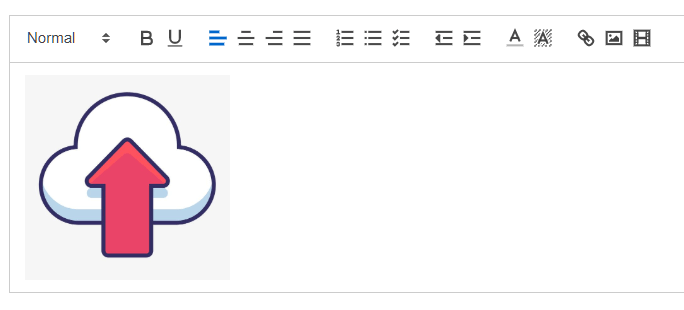
        <vue-editor
            v-model="editorHtml"
            :customModules="customModulesForEditor"
            :editorOptions="editorSettings"
            :editorToolbar="customToolbar"
            useCustomImageHandler
            @image-added="handleImageAdded"
            @blur="onEditorBlur"
        />
    </div>
</template>

<script>
    // 引入vue2wditor
    import { VueEditor } from "vue2-editor";
    // 导入图片操作相关插件
    import { ImageDrop } from "quill-image-drop-module";
    import ImageResize from "quill-image-resize-module";

    export default {
        name: "Vue2Editor",
        components: { VueEditor },
        props: {
            defaultText: { type: String, default: "" },
            richText: { type: String, default: "" },
        },
        watch: {
            // 监听默认值回调
            defaultText(nv, ov) {
                if (nv != "") {
                    this.editorHtml = nv;
                    this.$emit("update:rich-text", nv);
                }
            },
        },
        data() {
            return {
                editorHtml: "",
                // 菜单栏
                customToolbar: [
                    [{ header: [false, 1, 2, 3, 4, 5, 6] }],
                    ["bold", "underline"],
                    [
                        { align: "" },
                        { align: "center" },
                        { align: "right" },
                        { align: "justify" },
                    ],
                    [
                        { list: "ordered" },
                        { list: "bullet" },
                        { list: "check" },
                    ],
                    [{ indent: "-1" }, { indent: "+1" }],
                    ["color", "background"],
                    ["link", "image", "video"],
                ],
                // 调整图片大小和位置
                customModulesForEditor: [
                    { alias: "imageDrop", module: ImageDrop },
                    { alias: "imageResize", module: ImageResize },
                ],
                // 设置编辑器图片可拖拽
                editorSettings: {
                    modules: { imageDrop: true, imageResize: {} },
                },
            };
        },
        mounted() {},
        methods: {
            // 自定义图片上传
            handleImageAdded(file, Editor, cursorLocation, resetUploader) {
                // 文件上传:$oss图片文件上传插件是自己封装的阿里云oss文件直传,此处代码自定义
                this.$oss(file, file.name).then((url) => {
                    if (!!url) {
                        Editor.insertEmbed(cursorLocation, "image", url);
                        resetUploader();
                    }
                });
            },
            // 失去焦点
            onEditorBlur(quill) {
                this.$emit("update:rich-text", this.editorHtml);
            },
        },
    };
</script>

<style scoped>
    /* 处理添加视频链接标签位置 */
    .editor >>> .ql-snow .ql-tooltip {
        top: 0 !important;
        left: 40% !important;
    }
</style>